


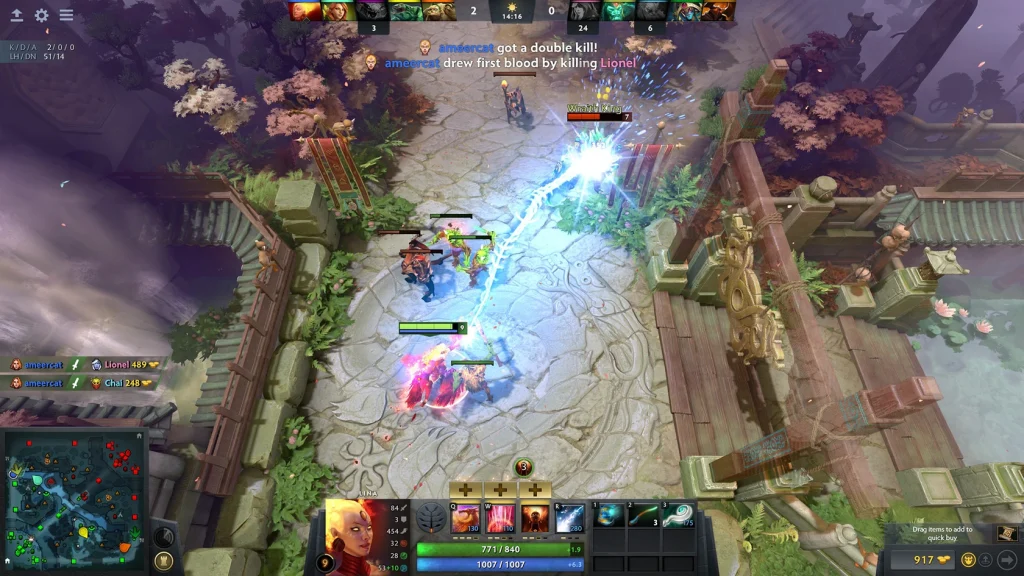
Health bars in Dota 2 use thin and thick markers to make large health totals easier to estimate. Some players prefer a solid bar with fewer divisions. The current HUD command can change the general health bar style, but old custom marker commands no longer work reliably.
Make the change in Demo Hero first. Health bar markers help with last hits and damage estimates, so removing them can reduce information as well as visual clutter.
Enable and open the console
Open Settings, choose Options, and enable the developer console in the advanced section. Return to Hotkeys and assign a console key. Start Demo Hero before testing a HUD command.
Open the console and enter dota_hud_healthbars followed by a value from 0 to 3. Press Enter, close the console, and inspect heroes and creeps. The visual result can depend on the current HUD build.
Use the command without a value to view its current state. Write down the original value before changing it. The normal default is commonly 3.
Choose the health bar style
Value 0 hides overhead health bars. This creates the cleanest view but removes important combat information. It is not recommended for normal matches.
Value 1 presents a simpler bar with the main divisions removed. Value 2 keeps a different reduced marker style. Value 3 restores the standard segmented appearance used by the normal client.
Compare values on a high-health hero and on lane creeps. A style that looks clear on a level-one hero may become harder to read after the hero gains several thousand health.
| Value | Health bar result | Recommended use |
|---|---|---|
| 0 | Overhead health bars hidden | Screenshots or controlled tests only |
| 1 | Simpler bar without the main divisions | Players who prefer less visual detail |
| 2 | Reduced alternative marker style | Compare in Demo Hero |
| 3 | Standard segmented health bar | Normal Dota matches and default setup |
Old marker size commands are not dependable
The command dota_health_per_vertical_marker once changed the amount of health represented by each vertical line. Modern client reports show that this behavior was removed or disabled. Do not build a current guide around that command.
Another old command displayed exact health numbers above the bar. Valve removed that option years ago. A console list may still contain similarly named variables, but they do not necessarily control the live overhead display.
Use only the result visible in the current demo session. If a command produces no change, restore the default and avoid adding it to autoexec.cfg.
Keep enough information for combat
Segments provide a quick estimate before a last hit or a finishing ability. A thin line traditionally represents a smaller health block, while a thicker marker separates a larger block. Exact presentation can change with interface updates.
Players of Axe, Necrophos, and other threshold-based heroes may rely on clear health information. Removing markers does not show the exact kill threshold. Read the target’s visible health value when available and account for barriers, regeneration, and damage reduction.
A solid bar can help when markers appear too dense on a small display. Increase interface scale or resolution before removing all bars. Better rendering may solve the original readability problem.
Restore the normal bar
Open the console and enter dota_hud_healthbars 3. Restart Dota if the interface does not refresh. Remove any line that changes this command from autoexec.cfg, otherwise the custom value may return at launch.
If overhead bars remain missing, check spectator settings, custom HUD files, and replay mode. A replay can use presentation options that differ from a normal player view.
Keep a screenshot of the default and custom styles. It makes future troubleshooting simple after a patch changes the interface.
 EN — English
 RU — Русский
Comments (0)