

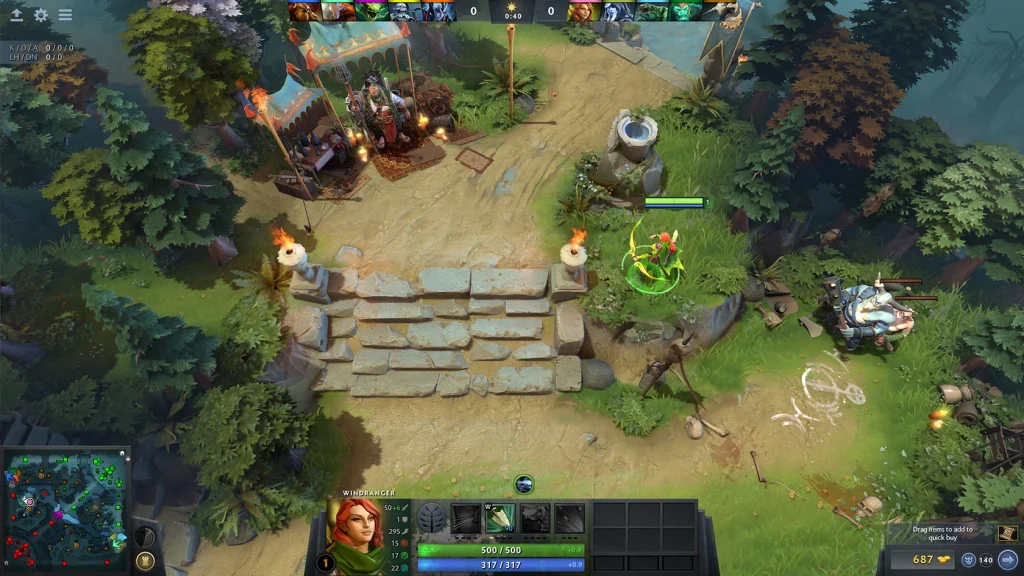
Dota 2 offers two safe ways to make health bars easier to read. Colorblind mode changes the friend and enemy color scheme. The high-visibility local hero option gives your own health bar a stronger visual treatment during fights.
The current client does not provide a full color picker for every health bar. Old console guides often suggest separate red, green, and blue values, but those commands are inconsistent in modern versions. Start with the supported interface settings.
Turn on the supported color options
Open Settings and choose Options. Find the accessibility or colorblind setting and enable it. The exact label can vary with the client language. Enter a demo match and compare allied, enemy, neutral, and local hero bars before keeping the change.
Next, open the Interface section and enable the high-visibility local hero health bar. This option emphasizes only the player’s own hero. It is useful when many summons, illusions, and spell effects fill the same area.
Test both settings separately. Some players prefer the high-visibility bar with the normal team colors. Others need the stronger friend and enemy contrast provided by colorblind mode.
Use the console only for simple toggles
Enable the developer console in the advanced settings. Assign a console hotkey, open a demo match, and enter dota_hud_colorblind 1. Use dota_hud_colorblind 0 to return to the normal color scheme.
The command dota_hud_healthbar_local_player_high_visibility 1 enables the stronger local hero bar on supported builds. Use a value of 0 to disable it. The menu remains the better choice because the current setting is visible there.
Do not paste a long unknown config from an old forum. Commands can be removed or repurposed. Change one value, check the result, and keep a copy of the previous setting.
| Option | Recommended method | Purpose |
|---|---|---|
| Colorblind colors | Accessibility setting | Changes friend and enemy color contrast |
| Your hero’s health bar | Interface setting | Makes your own health bar easier to locate |
| Colorblind console toggle | dota_hud_colorblind 1 |
Enables the supported colorblind scheme |
| Default colors | dota_hud_colorblind 0 |
Returns to the standard scheme |
Why custom RGB commands are unreliable
Older configurations changed team colors through commands ending in _color_r, _color_g, and _color_b. Those values could also affect minimap icons, selection outlines, and other interface elements. A copied color may reduce clarity elsewhere.
Modern Dota updates can ignore some legacy variables. Another command may still exist but no longer control the health bar shown above heroes. This is why a command can return a value in the console without creating the expected visual change.
A custom HUD or modified game file is not required for this task. Use the official settings and avoid replacing interface files. Modified files can break after updates and make troubleshooting much harder.
Build a readable visibility setup
Choose a color mode first, then adjust health bar visibility. Keep hero names visible only if they help recognition. Large names can cover units during a crowded fight, especially on a low-resolution display.
Set the render brightness and monitor contrast before judging a color. Disable aggressive monitor filters that crush dark shades. Dota’s Dire areas use darker terrain, so a bar that looks clear in the Radiant base may be harder to see near Dire trees.
Use the same demo fight for each comparison. Spawn several heroes or illusions and place them near creeps. Check whether your own hero remains visible while health changes quickly.
Restore the default appearance
Return to Settings and disable colorblind mode and the high-visibility option. If you used console toggles, set both values to 0 and restart the client. The normal interface should return without deleting other controls.
If colors still look wrong, verify the monitor profile and graphics driver color settings. Steam launch options and third-party overlays can also apply filters. Disable those filters temporarily before resetting the entire Dota configuration.
Take a screenshot of the settings that work well. This gives you a quick reference after a client update or a move to another computer.
 EN — English
 RU — Русский
Comments (0)