

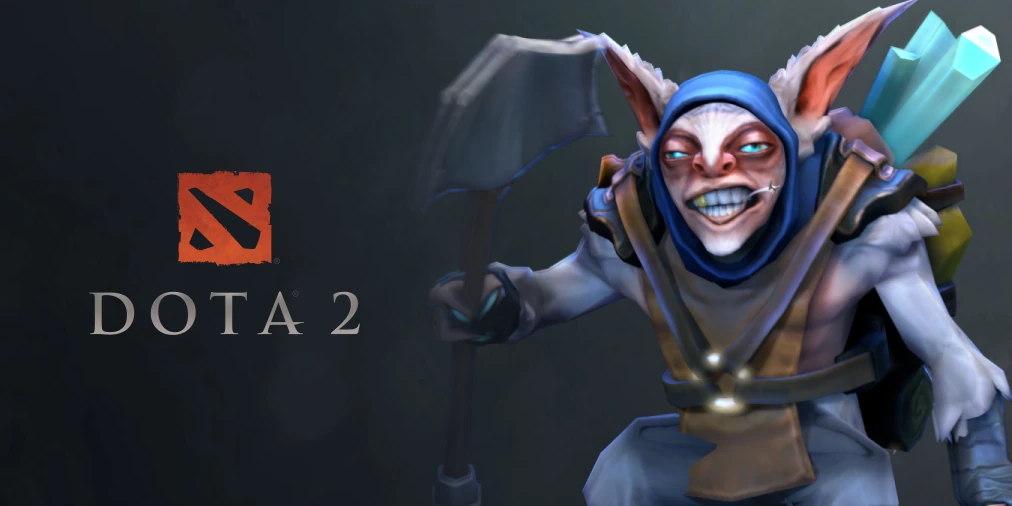
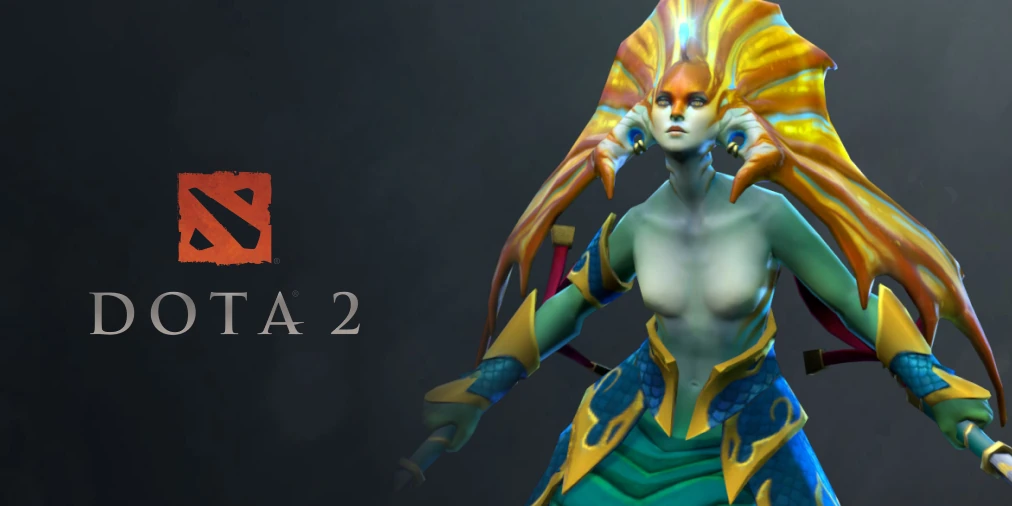
Control groups let a player select the same hero, summon, or set of units with one key. They are essential for heroes such as Meepo, Chen, Naga Siren, Beastmaster, and Lone Druid. They also help with temporary illusions and dominated creeps.
The useful setup is usually small. One key selects the main hero, another selects all other units, and two or three custom groups handle special units. Too many groups create more input errors than useful control.
Assign the control group hotkeys
Open Settings and choose Hotkeys. Find Select Hero, Select All Controlled Units, and Select All Other Units. Bind these three actions first. Then assign comfortable keys to Control Group 1, Control Group 2, and Control Group 3.
Numbers are common, but they are not required. Avoid taking a key already used for an item, ability, shop, or camera action. Test every assignment inside Demo Hero before entering matchmaking.
Advanced Control Groups provide more slots. Add them only when a specific hero needs them. A compact setup is easier to remember during a fight.
Create and recall a group
Select the required Dota units with a drag box or individual clicks. Hold Ctrl and press the chosen group hotkey. The client stores that selection as the group. Press the hotkey once to select those Dota unit types again.
Press the group hotkey twice to move the camera to the selected group. This is useful for a scouting summon or a unit that pushes another lane. A double press can also pull the camera away from the main hero, so use it carefully.
To replace a group, select a new set of units and press Ctrl plus the same hotkey. To add selected units without replacing the group, use Shift plus the group hotkey.
A practical three-group layout
Keep the main hero on the normal Select Hero key. Put all controllable units except the hero on one easy key. Use Control Group 1 for the most important permanent summon, such as Lone Druid’s Spirit Bear.
Use Control Group 2 for a second unit type or a pair of illusions. Keep Control Group 3 for a scouting unit, a dominated creep with an active spell, or one Meepo that performs a separate task.
This layout covers most situations without filling the keyboard. Change it only after several demo sessions show a repeated need.
| Action | Input | Result |
|---|---|---|
| Create or replace a group | Ctrl + group key |
Stores the selected Dota units |
| Select a saved group | Group key | Selects the saved Dota units |
| Focus the camera | Press group key twice | Moves the camera to the group |
| Add Dota units to a group | Shift + group key |
Adds selected Dota units without replacing the group |
| Cycle through Dota units | Tab |
Moves selection through the current group |
Use Tab, Shift, and unified orders
Tab cycles through units in the current selection. It is useful when several controlled units have different active abilities. Watch the selected portrait before casting, because Tab can move to a unit that lacks the expected spell.
Hold Shift to queue movement, attacks, and some abilities. A queued route helps a summon scout several points. Long queues are risky because the map can change before the unit reaches the final order.
The unified orders option lets Ctrl send an order to every controlled unit. It is fast for a retreat, but it can also pull a carefully positioned unit into danger. Learn the option in a bot match before enabling it permanently.
Practice without losing the hero
Enter Demo Hero with a micro-intensive hero. Send one group to a neutral camp while the main hero stays in lane. Look at the main hero after every two or three unit commands. This creates a stable attention rhythm.
Next, order two groups to different targets. Use the Select Hero key after each task. The goal is not maximum speed. The goal is issuing the correct order without leaving the hero exposed.
Control group assignments are normally synchronized through Steam Cloud. Recheck them after changing accounts, disabling Cloud sync, or replacing the configuration files.
Fix groups that select the wrong units
Rebuild the group in a fresh demo session. Select only the intended unit types and press Ctrl plus the group key. If a temporary unit keeps appearing, check auto-select summoned units and the unified order settings.
Some hero-specific groups persist across games. This is helpful for Meepo and Lone Druid, but an old group can be confusing after a major patch. Replace it instead of adding more keys around the problem.
If a hotkey does nothing, check for conflicts in both basic and advanced hotkey pages. Dota may warn about a conflict, but custom layouts can still hide one action behind another.
 EN — English
 RU — Русский
Comments (0)